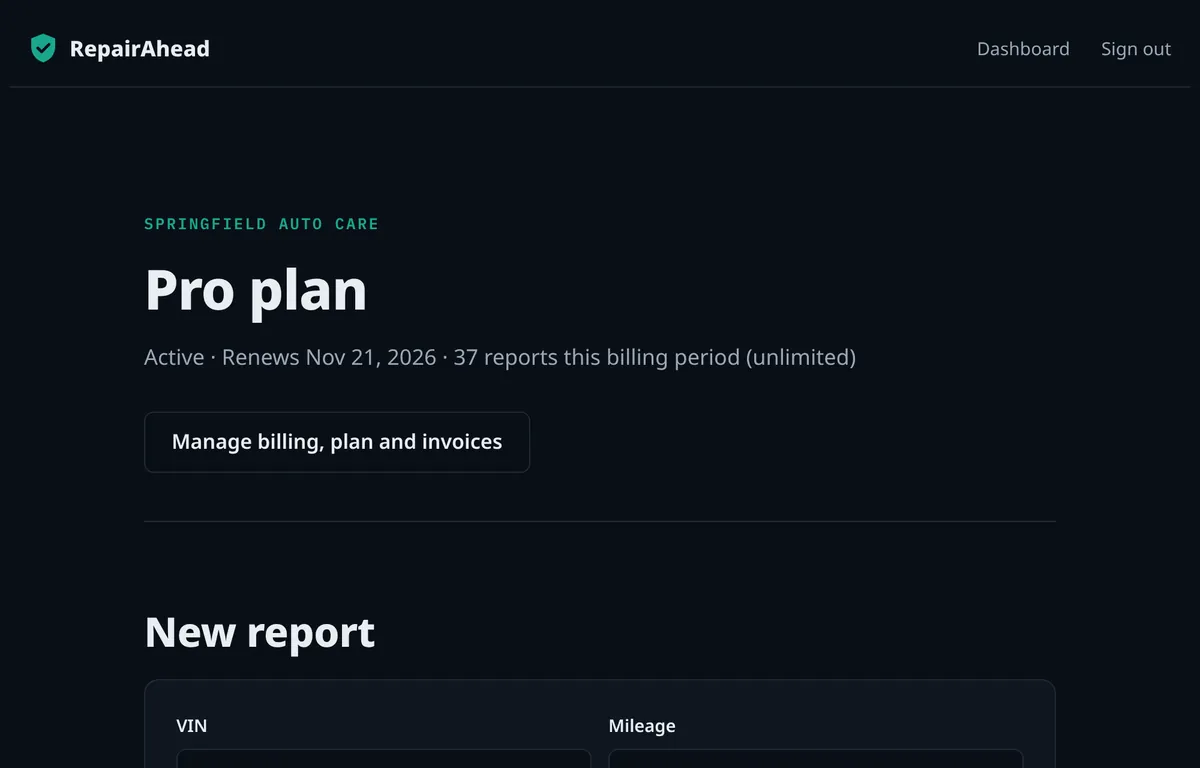
In Manage billing you can
- Switch between Shop ($129 a month, 40 reports a month, with due-work reminders and new-recall alerts) and Pro ($199 a month, unlimited reports for your location, plus free-coverage alerts and Tomorrow’s cars).
- Switch to yearly billing ($1,290 or $1,990 a year, two months free).
- Update your card, and download invoices and receipts.
- Change your account email (used for sign-in, reports and approvals). Every computer and phone that was signed in is signed out; sign in again with a link sent to the new email.
- Cancel.
RepairAhead never sees your card number. One subscription covers one shop location; each location signs up separately.
Receipts for your bookkeeper
Stripe emails a receipt to your account email after each payment, and every invoice is under Manage billing. Each invoice names your shop. The charge on your card statement is from RepairAhead.
If your bookkeeper or accountant needs the receipts too, email hello@repairahead.com with their address and we’ll copy them on each one. Don’t change the account email for this: sign-in links, reports and customer approvals go to that address.
When someone who used RepairAhead leaves
Your shop has one account and one sign-in email. A computer or phone signed in with it stays signed in while it’s used, so a former employee’s phone can still open your dashboard and Manage billing. Press Sign out on every device at the bottom of the dashboard, or change the account email under Manage billing, which signs everyone out too. Then sign in again on the devices you use.
If a payment fails
The dashboard says Payment failed, update your card, and Stripe emails you. You keep access while Stripe retries the card. Update the card under Manage billing.
If every retry fails, the plan ends and we email you. New reports pause, but your customers’ links keep working and your reports, prices and settings stay. For 60 days after the plan ends, customers can still send you approvals from their links; after that a link still shows the report and asks the customer to contact you directly. Sign in and press Restart my plan to come back with another card.
Canceling and restarting
- First 30 days: if RepairAhead isn’t right for your shop, email hello@repairahead.com within 30 days of your first payment and we refund that payment in full and end your plan. Once per location, first payment only.
- When you cancel, you keep access to the end of the period you paid for. Apart from that first payment, partial periods aren’t refunded. We email you a confirmation with the date your plan ends and that you won’t be charged again, and the dashboard shows the same date.
- Changed your mind before that date? Open Manage billing and renew the plan. Cancelled by mistake, or have a question about a charge? Email hello@repairahead.com and we’ll help.
- After it ends, new reports pause, but your reports, prices and settings stay. Your customers’ links keep working: for 60 days they can still send you approvals, and after that a link shows the report and asks the customer to contact you directly. We email you on the day it ends.
- To come back, sign in, tick the box to agree to the current Terms and Privacy Policy, and press Restart my plan. You go through checkout again.
Ran out of reports?
On the Shop plan, the dashboard tells you when you’ve used this month’s 40. Switch to Pro under Manage billing for unlimited reports, or wait for next month’s allowance. Re-running a VIN within 30 days stays free.