Until you set prices, every job on your handouts says “Ask us for a quote”. The quickest start is Set up your prices on the dashboard: three short steps (your rates, how prices show, your shop terms) with a preview of what your customer sees. Everything below is also on Your prices (the Edit your prices button).
The two-minute way: start from typical prices
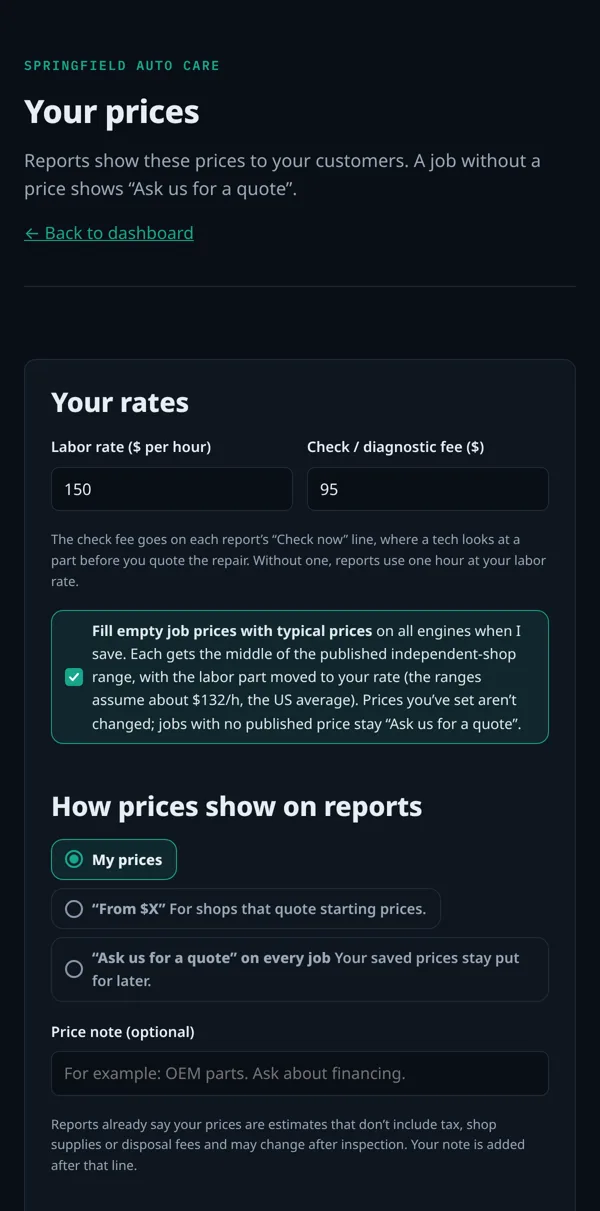
- Enter your labor rate under Your rates (and your check / diagnostic fee, if you charge one).
- Leave “Fill empty job prices with typical prices” ticked and press Save prices. Every job you haven’t priced, on every engine we cover, gets a starting price: the middle of the published independent-shop range, with the labor part moved to your rate. (On the dashboard, Use typical prices for all engines does the same.)
- Adjust any job later. Prices you set yourself are never overwritten. Jobs with no published price stay “Ask us for a quote”.
Fine-tune one engine
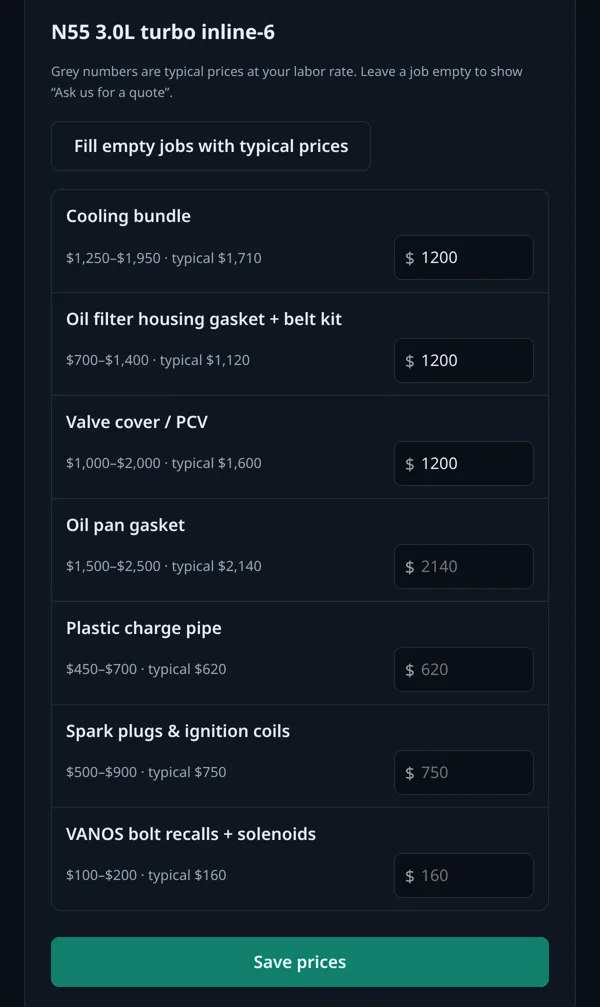
- Under Job prices for one engine, type a make, model or engine code (for example Silverado, 3.5 or N55), pick the engine and press Show jobs.
- Each job shows the published range for reference and a box for your price, one installed price per job. Grey numbers are typical prices; Fill empty jobs with typical prices copies them in. Then press Save prices.
- Press Save prices. Engines you’ve priced are listed under the search box so you can come back to them.
Shop-wide settings
- Check / diagnostic fee. Goes on each report’s “Check now” line, where the report suggests your tech looks at a part before quoting the repair. Without one, reports use one hour at your labor rate.
- How prices show on reports. My prices, or “Ask us for a quote” on every job (your saved prices stay put for later).
- “From $X”. The third choice, for shops that quote starting prices. The handout, the customer link, the Approve form and the approval email all say “From”.
- Price note (optional, up to 120 characters). For example “OEM parts. Ask about financing.” Reports already say your prices are estimates before tax, shop supplies and disposal fees, may change after inspection, and aren’t a written estimate. Your note is added after that line.
- Your shop terms (optional). Up to 6 lines in your own words, each a label and some text, for example “Shop supplies: 8% of labor, max $40” or “Warranty: 24 months / 24,000 miles”. Start from the suggested labels or press Add a line. They print on the handout, your customer’s page and the full report as “[your shop]’s terms”. They’re text only and never added into a job’s price.
Needs a price
At the top of Your prices, Needs a price lists jobs on the engines from your reports of the last 90 days that have no price yet, so they print “Ask us for a quote”. Fill in the ones you want to price and press Save these prices.
A different price or terms for one car
Open the finished report from the dashboard and press Fix prices and terms on this report. Change the check fee, any job price or any terms line, then press Update report (free). The handout, PDFs and your customer’s page are rebuilt in a minute or two with the same customer link and QR code, it doesn’t use a report, and approvals your customer already sent stay as they are. Tick Also make these my standard prices and my standard terms to use them on new reports too.
You can also change prices before a report is built: on the New report form, open Edit prices for this report. See Run a report.
Your standard prices change new reports only. A report keeps the prices it was built with until you update it from its report page.
Next: Run a report →