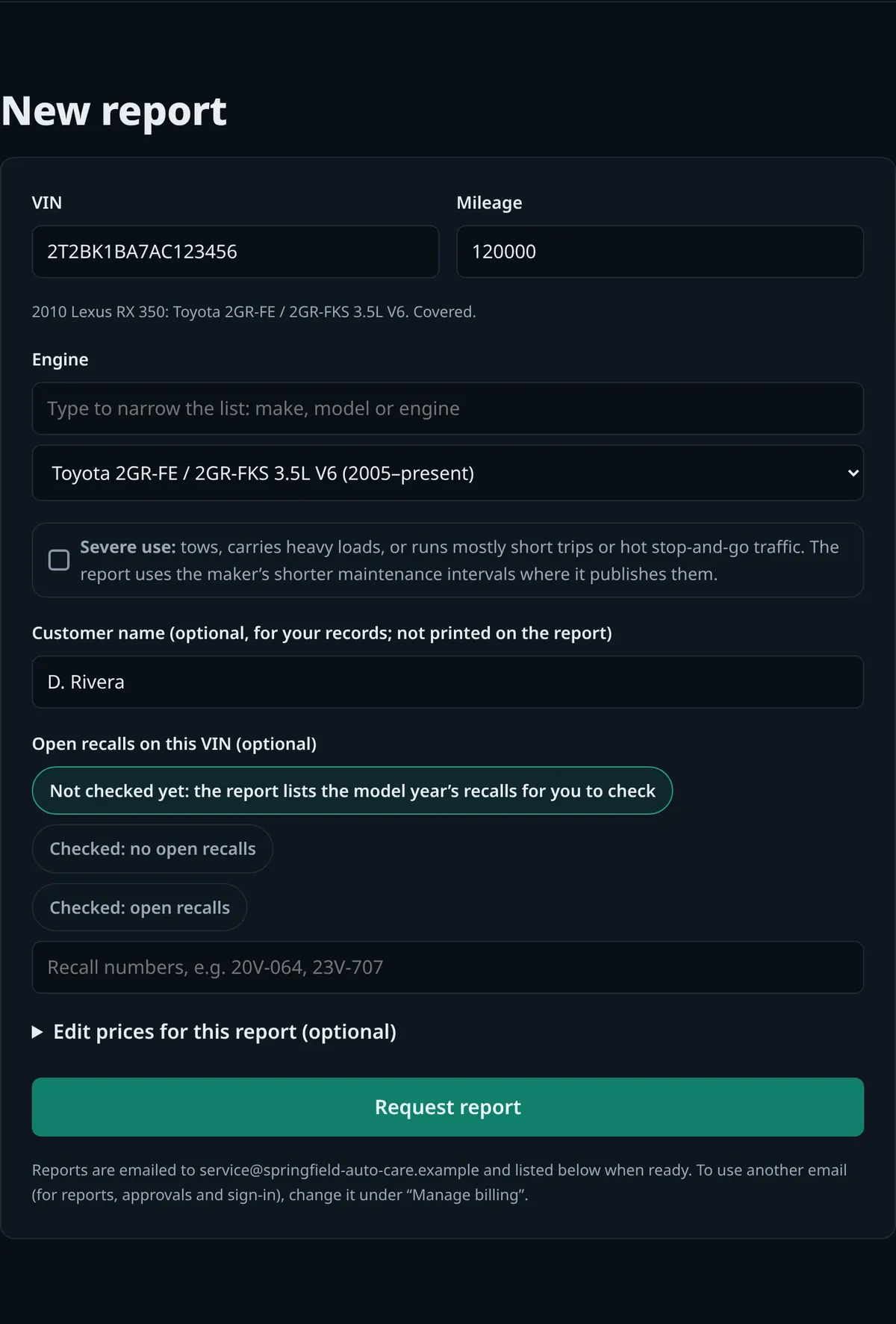
- On the dashboard, type the VIN. As soon as it’s 17 characters we check it with NHTSA’s decoder and tell you the car, the engine and whether we cover it. The engine is picked for you. On a phone whose browser can read barcodes (Chrome on Android, for example), Scan the VIN barcode with the camera fills it in from the door-jamb or windshield label; on an iPhone, type it.
- Enter the mileage from the odometer.
- Fill in the optional parts if they apply (below), then press Request report.
The optional parts
- Engine. Leave it on what the VIN check chose. Change it only if you know the car has a different engine. The box above the list filters it: type a make, model or engine code.
- Severe use. Tick it for cars that tow, carry heavy loads, or run mostly short trips or hot stop-and-go traffic. The maintenance schedule then uses the maker’s shorter intervals where it publishes them.
- Pre-purchase inspection. Tick it when the customer is thinking of buying the car. The handout is headed “Before you buy” with a line on what to ask the seller, the full report and the customer’s link add the seller questions and papers to get for that engine, a Hyundai, Kia, Genesis or Mitsubishi shows the later owner’s 5-year warranty instead of the original owner’s 10-year one, and the car stays out of due-work reminders. If they buy it, run a new report when it’s back for service.
- Customer language. Choose Español for a customer who reads Spanish. The customer handout and the customer’s link are then in Spanish. The full report, the technician worksheet and your emails stay in English, and so do most part names and the recall descriptions. Your usual choice is set under “Report branding”. To change the language of a finished report, open it and use Fix prices and terms on this report; that doesn’t use a report. More in Use the handout, worksheet and full report.
- Customer name or RO number. For your records and the search box, so an approval email matches your repair order. It’s never printed on the report or the customer link.
- Open recalls on this VIN. If you’ve checked the VIN (at nhtsa.gov/recalls or with the dealer), say so: “no open recalls”, or “open recalls” with the recall numbers. Otherwise the report lists the model year’s recalls for you to check.
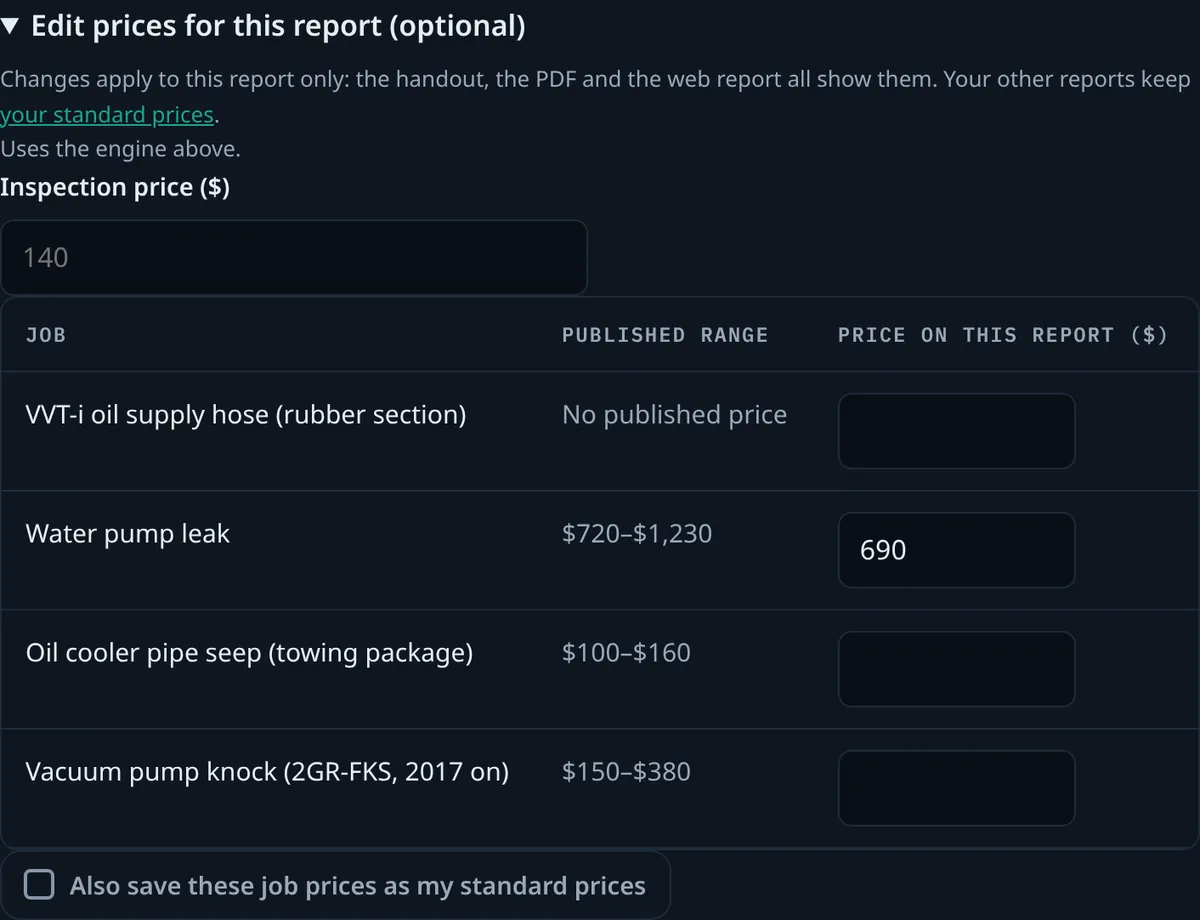
- Edit prices for this report. Change a price for this car only. Your standard prices stay the same unless you tick Also save these job prices as my standard prices.
Tomorrow’s cars (Pro)
On the Pro plan, the dashboard has a Tomorrow’s cars box under New report. Paste tomorrow’s appointments and request all the reports in one go, so they’re ready when the cars arrive.
- One car per line: the VIN, then the mileage, then the customer’s name or RO number if you want it. For example:
1HGCM82633A004352 148000 RO 4020 - Spaces, tabs or commas between them all work, so you can paste columns from a spreadsheet or your scheduler. Mileage can be 148000, 148,000 or 148k. A header row is skipped.
- Up to 25 cars at a time. Paste the rest again.
- Press Request these reports. The next page shows which lines were requested and which weren’t, and why (a VIN that doesn’t look right, a missing mileage, the same VIN twice). Fix those lines in the box on that page and send them again.
- Each line is checked and counted the same way as New report: your standard prices, the engine read from the VIN, and the same car within 30 days is free. Each report is emailed to you when it’s ready.
- For severe use, a pre-purchase inspection, a recall check you’ve made or one-off prices, use New report for that car.
On the Shop plan the dashboard shows a line about Tomorrow’s cars. Switch to Pro under Manage billing to use it. See Billing, plan and account.
What you’ll see after you press Request report
| Status on the dashboard | What it means | Uses a report? |
|---|---|---|
| Building… | Usually ready within a couple of minutes. The page refreshes itself, and the report is emailed to you. | Yes, once built |
| Open | Ready. Click it for the handout, worksheet, full report and customer link. | Yes |
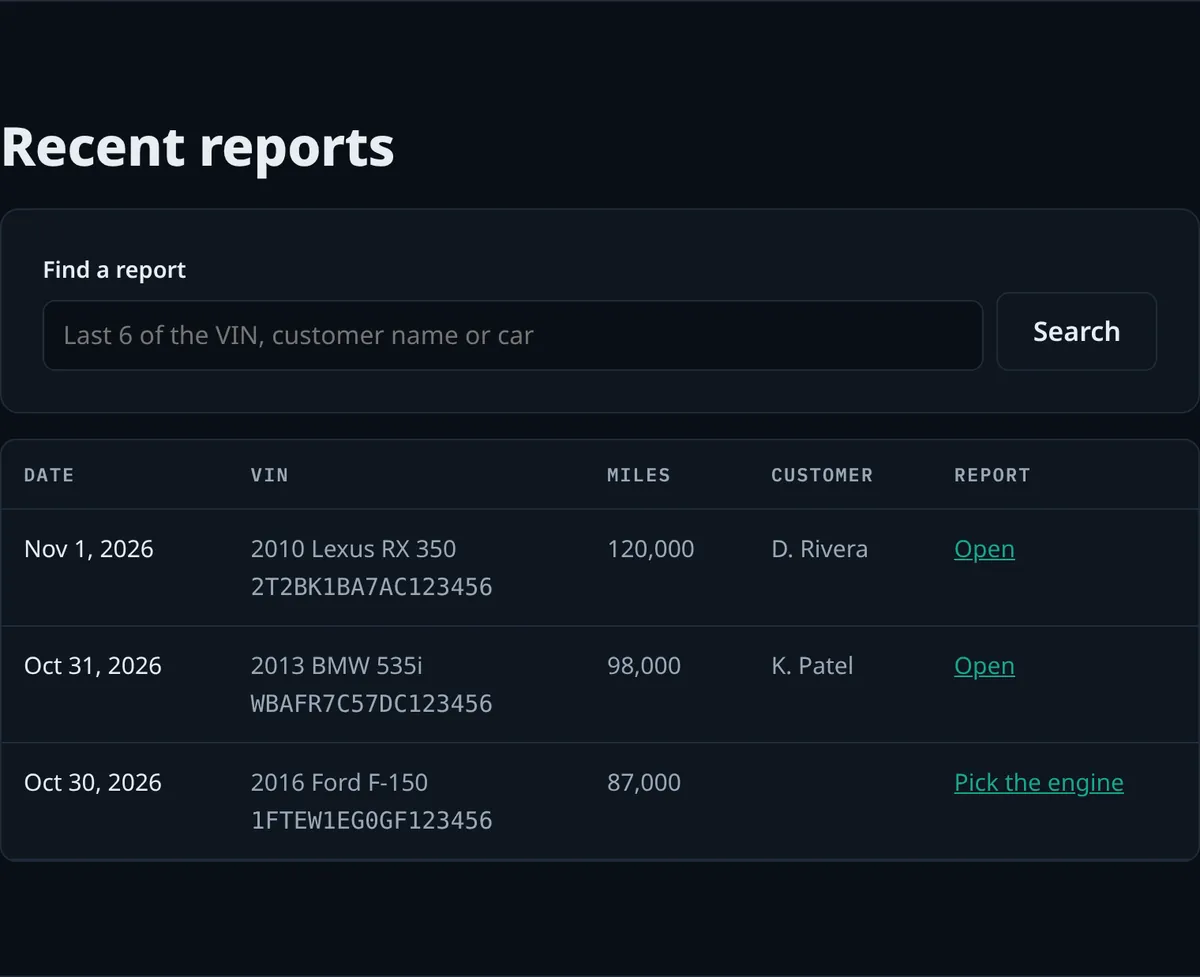
| Pick the engine | The VIN doesn’t say which engine the car has. Open it, pick one and press Build the report. If it’s none of them, leave it. | Only if you build it |
| Not covered (free) | We don’t have a report for that engine yet. We email you either way. | No |
| Failed (free) | Something went wrong on our side, and we’ve been alerted. Try again later from the dashboard. | No |
Warnings worth reading
- “Check the VIN” means a character is probably mistyped (the check digit doesn’t match, or the characters don’t fit that maker). Compare it with the door sticker before you send it.
- “NHTSA couldn’t decode this VIN” usually means a typo too.
- “We don’t have a report for this engine yet” means a request won’t be charged.
What counts as a report
- One VIN at one mileage. Running the same VIN again within 30 days is free. Each car in a Tomorrow’s cars paste counts the same way.
- Not covered, failed and “pick the engine” requests that you don’t build don’t count.
- A report with nothing for the customer to approve (“Nothing due”: no job and no factory maintenance) doesn’t count either. The report email and report page say so.
- The Shop plan includes 40 reports a month (on yearly billing too, counted month by month). Pro is unlimited for your location. The top of the dashboard shows how many you’ve used.
Find an older report
The dashboard lists your 25 newest reports. Use Find a report with the last 6 characters of the VIN, part of the customer’s name, or the model.