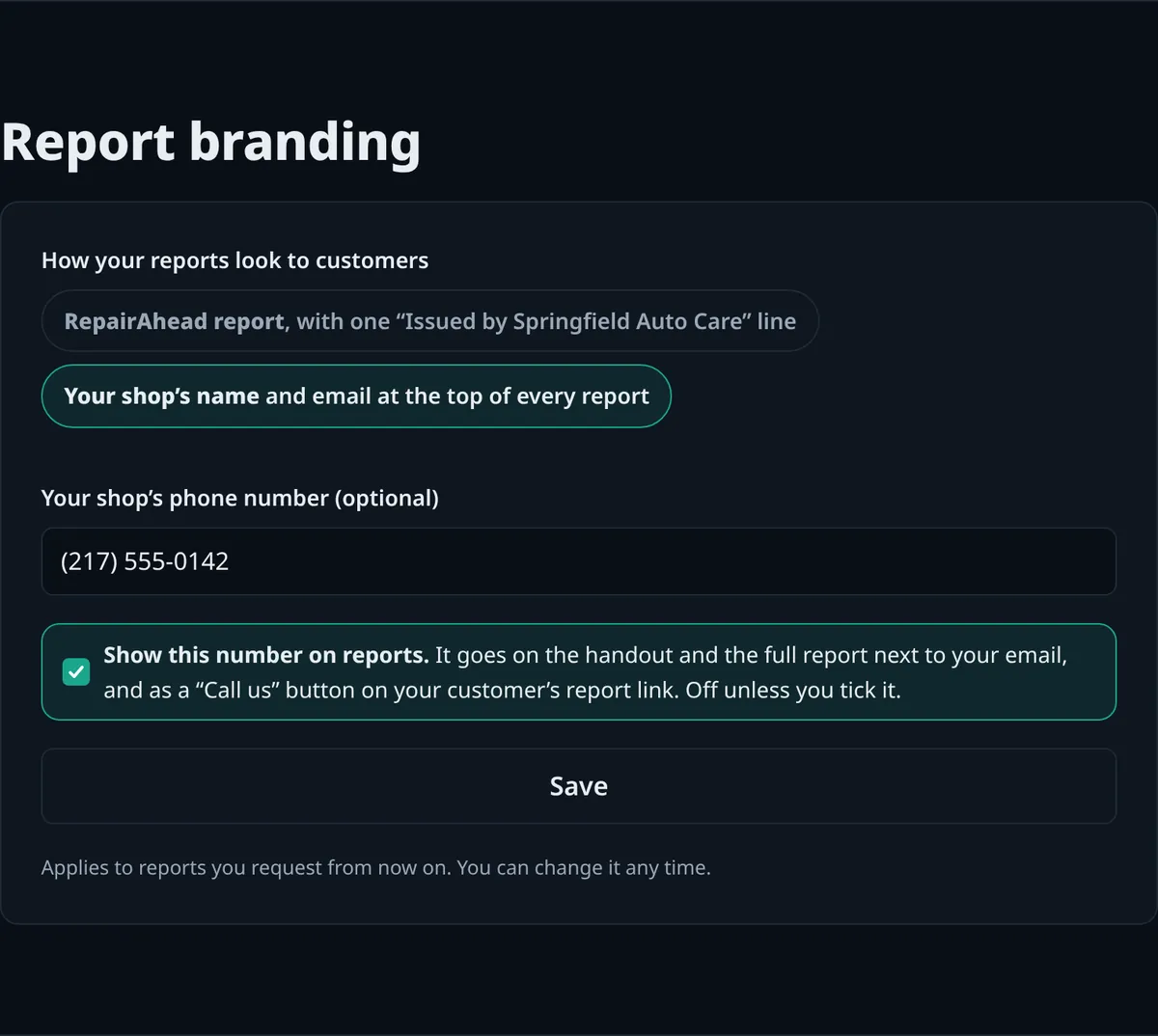
Two looks
- RepairAhead report with one “Issued by [your shop]” line. This is the default.
- Your shop’s name and email at the top of every report, handout and customer link.
Your phone number
- Enter a US number and tick Show this number on reports. It goes on the handout and full report next to your email, and as a Call us button on the customer link.
- It’s off unless you tick it. Untick it any time; the Call us button disappears from customer links at once.
Your online booking link
- If customers can book your shop online, paste that page’s address (starting with https://) under Online booking link. Customer links then show a Book a time button next to Approve work, and the text you send from a report page includes the link.
- Leave the field empty to hide it. Like the phone number, a change shows on every customer link at once.
Customer language
- Customer language for new reports sets what the New report form starts with: English or Español. You can still pick the other one for any report.
- With Español, the customer handout and the customer’s link are in Spanish. The full report, the technician worksheet and your emails stay in English. See A customer who reads Spanish.
Branding applies to reports you request after you press Save. Reports already built keep the look they were built with (the phone number and booking link are the exceptions, as above).